Member Portal

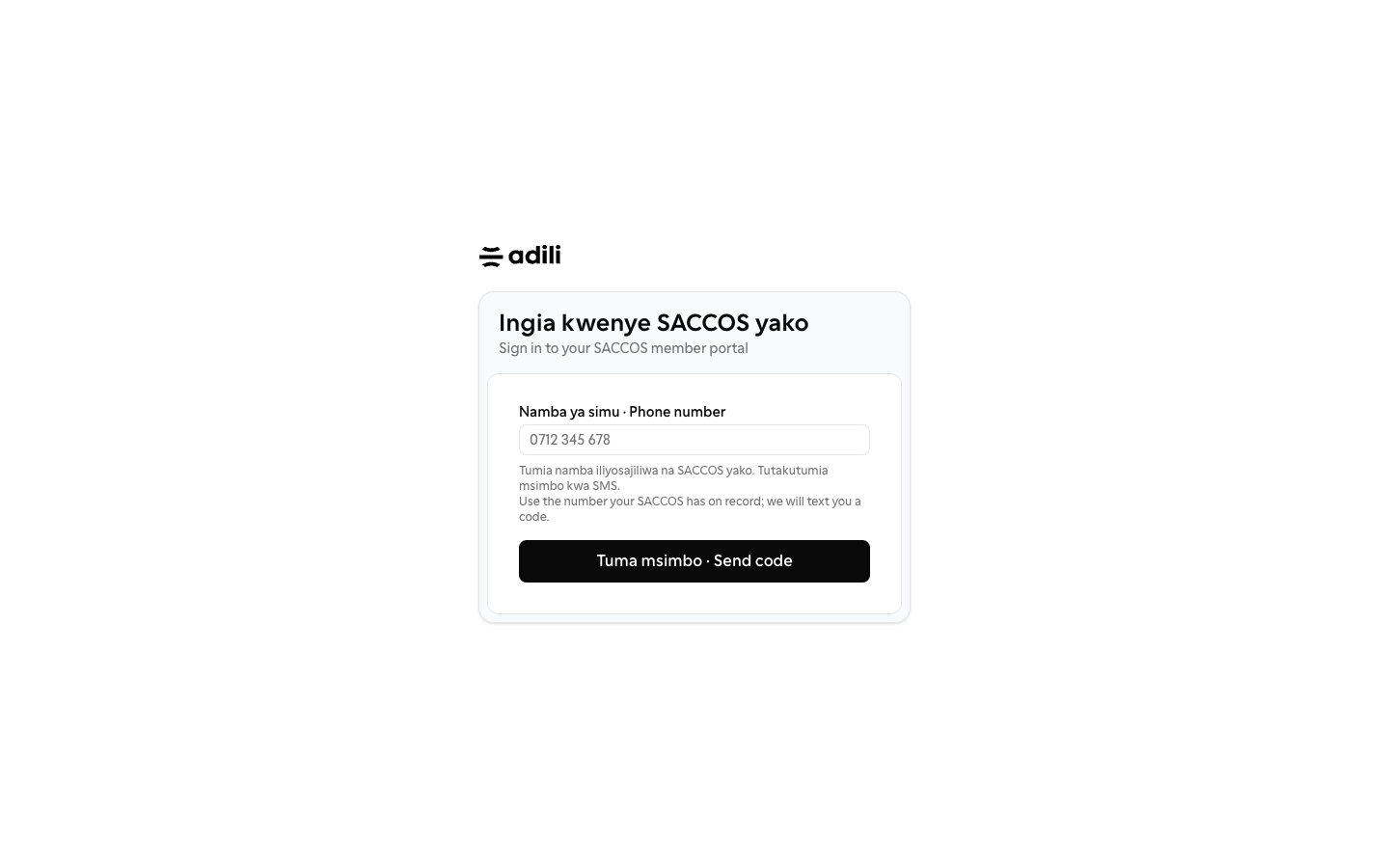
What members see when they sign in by phone, and how to get them started.

Workflow

  1. 1

    Check phone numbers

    Members sign in with the phone number their SACCOS holds, so keep numbers on the register current.

  2. 2

    Share the group's link

    Each organization has its own link https://adili.app/member/<organization>/ that names the organization on the sign-in page. Staff see the link with Copy and Open buttons on the SACCOS/group overview. A member on several registers goes straight to that organization's record; a signed-in member following another organization's link switches to it. Choosing remains for the generic /member entry point.

  3. 3

    What members see

    Their shares and savings statements, contribution timetable and arrears, loans, guarantees, nominees, upcoming general meetings and reports of closed ones. The portal is read-only.
See it in Adili

Follow the screen, step by step

The examples use safe training data. Names and amounts in your account will be different.

Check phone numbers

1 Check phone numbers

What to do

  1. 1. Members sign in with the phone number their SACCOS holds, so keep numbers on the register current.
  2. 2. Each organization has its own link https://adili.app/member/<organization>/ that names the organization on the sign-in page. Staff see the link with Copy and Open buttons on the SACCOS/group overview. A member on several registers goes straight to that organization's record; a signed-in member following another organization's link switches to it. Choosing remains for the generic /member entry point.
  3. 3. Their shares and savings statements, contribution timetable and arrears, loans, guarantees, nominees, upcoming general meetings and reports of closed ones. The portal is read-only.

You should see

Every active member has a current phone number.