Workflow
-
1
Know when a loan can change
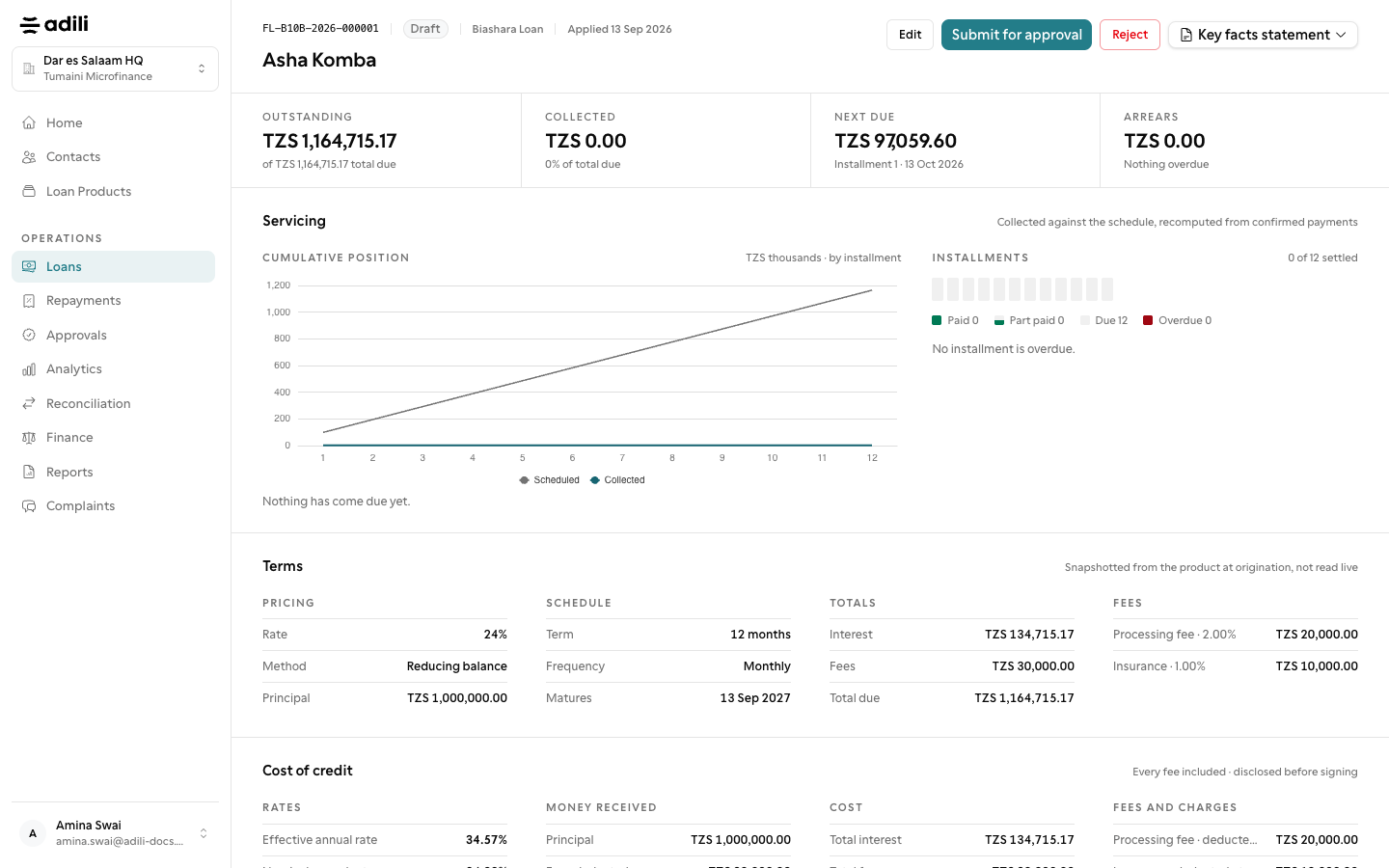
Only a Draft or Assessed loan can be edited. Once it is Pending, Approved or paid out, Adili answers Only a draft or assessed loan can be edited.
-
2
Edit the loan
Choose Edit on the loan page. You can change the Loan product (the loan is re-priced), the Optional add-ons, the Amount, Term (months), Purpose and Notes. When the amount, term or product changes, fill in Reason for the change, then choose Save changes. If the loan was assessed, the form shows what the assessor recommended.
-
3
Read the checker's note
A loan sent back with Request changes shows the checker's name and reason at the top of the page: sent this loan back for changes, followed by what to fix.
-
4
Resubmit
After editing, choose Submit for approval on the loan, or Resubmit under Returned for changes on the Approvals page. The request goes back to the checkers with the change history kept.
-
5
From the staff app
In the app, open Work → Returned to you and choose Edit loan or Resubmit, or open the loan and use More actions → Edit loan.